OLED TVs are renowned for their stunning picture quality, but the specter of burn-in—permanent image retention from static content—often haunts potential buyers. After years of owning an OLED without a trace of burn-in, I've honed a practical routine that goes beyond the basics. Modern OLEDs come with built-in safeguards like pixel shifting and refreshes, but a proactive approach makes all the difference. Here are 10 tips you need to know to keep your OLED screen pristine, blending technology with smart habits.
1. Optimize Brightness and Contrast Settings
High brightness and contrast levels accelerate pixel wear, increasing burn-in risk. I keep my OLED's OLED Light setting around 50-60 for SDR content and use filmmaker mode for accurate colors without excessive brightness. For HDR, I rely on the TV's automatic tone mapping rather than manually cranking it up. Most modern OLEDs have an energy-saving mode that reduces brightness during static scenes—enable it. Experiment with your viewing environment: a dim room lets you lower brightness significantly while maintaining excellent contrast. Remember, brighter isn't always better for longevity.
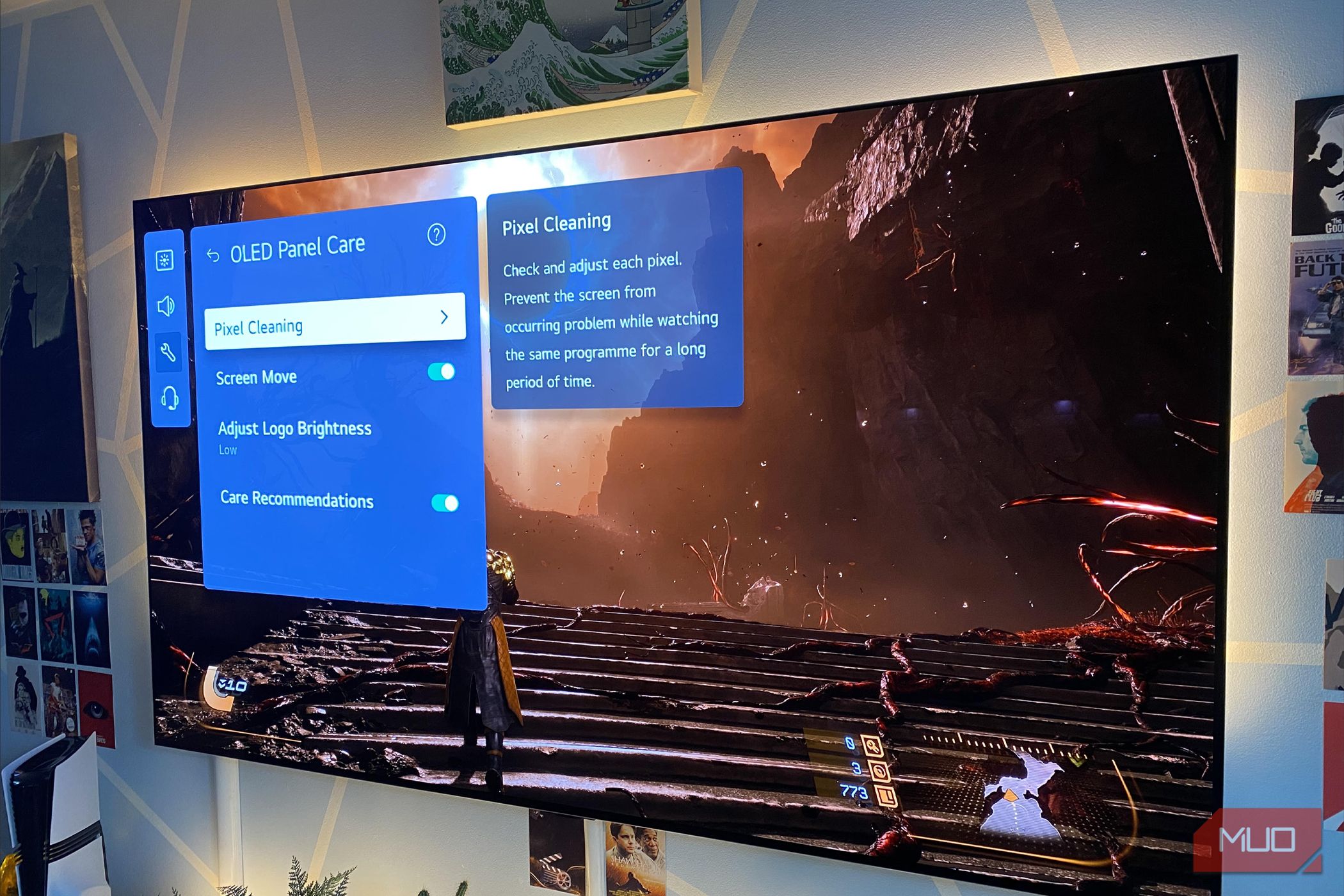
2. Leverage Pixel Shift and Automatic Refresh Cycles
Every OLED has a pixel shift feature that subtly moves the entire picture by a few pixels periodically—this distributes wear evenly. Ensure it's enabled in your TV's picture settings. Additionally, newer models perform automatic short refresh cycles after every 4 hours of cumulative use (when the TV is turned off). These cycles correct minor image retention without user input. Don't interrupt them: let the TV stay in standby for at least 10 minutes after use. If you notice temporary image retention, a manual pixel refresh (available in settings) can help, but use it sparingly as it reduces panel lifespan.
3. Vary Your Content Regularly
Static elements like news tickers, sports scoreboards, or game HUDs are prime culprits. I make a point to switch content types frequently—watch movies between sports events, and avoid marathoning the same channel for hours. When gaming, take breaks every 2-3 hours and let the screen show a moving screensaver. Streaming services with rolling logos (e.g., Netflix's static logo during idle) can be problematic; use the 'screen off' feature on your TV remote instead of leaving it paused. A diverse viewing diet keeps pixel wear uniform.
4. Employ Built-In Logo Luminance Adjustment
Most OLEDs now include a feature called Logo Luminance Adjustment or similar. It detects static logos in corners and automatically dims them to prevent burn-in. Check your TV's settings under 'General' or 'Picture'—enable it if available. This is especially useful for news channels with persistent logos. In my experience, it works transparently and can reduce the risk significantly without distracting from the content. Pair this with the screen's own artificial intelligence that learns and adapts to your usage patterns.
5. Utilize a Screensaver or 'Screen Off' Function
Whenever you pause a movie, take a phone call, or walk away, activate the screensaver or simply turn off the display. Most OLED remotes have a dedicated 'Screen Off' button (sometimes labeled 'Power Off' for the screen only). If yours doesn't, set the TV sleep timer to 5 minutes. Screensavers that show moving patterns or shifting colors are ideal—your TV probably has one built-in. This simple habit prevents static images from lingering during idle moments, which accumulate over time.
6. Keep Firmware Up to Date
TV manufacturers constantly improve burn-in mitigation algorithms through firmware updates. I always apply updates as soon as they're available (check under 'Support' or 'Software Update'). New versions may refine pixel refresh cycles, enhance logo detection, or introduce better automatic brightness limiting. Don't ignore them—they can make a real difference in extending your panel's life. Some TVs even notify you of critical updates; ensure that setting is turned on. It's a free upgrade to your TV's defense system.

7. Control Environmental Factors
Heat and direct sunlight accelerate pixel degradation. Place your OLED away from windows or heat vents. If your room gets bright, use curtains or blinds during peak hours—excessive external light forces you to raise brightness, which exacerbates wear. I also ensure good ventilation behind the TV; overheating can strain pixels. Ambient temperature around 20-25°C (68-77°F) is ideal. If you live in a hot climate, consider a cooling fan or simply avoid using the TV for long stretches in extreme heat.
8. Adopt Dark Themes on Connected Devices
Your TV's settings matter, but so do the devices plugged into it. Set your streaming box, game console, or media player to use dark mode interfaces. Bright white menus or static bars (like the YouTube app's sidebar) can cause uneven wear if used for hours. On PCs connected via HDMI, enable a dark desktop wallpaper and hide the taskbar. For gaming, reduce the HUD brightness if the game allows. Small adjustments across your ecosystem compound to protect your OLED.
9. Run Manual Pixel Refresh Only When Needed
Modern OLEDs automatically run a pixel refresh cycle after every 4 hours of use (when you turn the TV off). A separate manual refresh (often found in 'Picture' or 'Device Care' settings) is more intensive and should be used sparingly—perhaps once every 6-12 months or if you see persistent image retention. Running it too frequently can degrade panel brightness over time. I've only used it twice in three years. Trust the automatic routine; it's designed to balance effectiveness with longevity.
10. Monitor Your Panel's Health Periodically
Check for early signs of uneven wear by viewing a 5% gray test pattern (available on YouTube). Do this every few months. Minor temporary retention (called image sticking) is normal and usually disappears after a pixel refresh. If you notice permanent burn-in, contact support—sometimes a panel replacement is covered under warranty. Keeping a log of your usage patterns (hours per day, type of content) helps you adjust habits. I do a quick test every quarter and have never spotted any issues. Early detection is key.
Conclusion: Burn-in is not inevitable with modern OLEDs, but it requires mindful habits. By combining built-in technology with the practices above—especially varying content, managing brightness, and letting automatic cycles do their work—you can enjoy stunning OLED picture quality for years without worry. My three-step routine (settings optimization, content variation, and leveraging automatic features) aligns with these 10 tips. Start implementing them today, and your OLED will reward you with a flawless screen long into the future.